PowerPoint accessibility checker: what it checks and what it doesn't
How to run PowerPoint's Accessibility Checker, fix slide titles, reading order, alt text, tables and contrast, and what the checker never checks.
Last updated
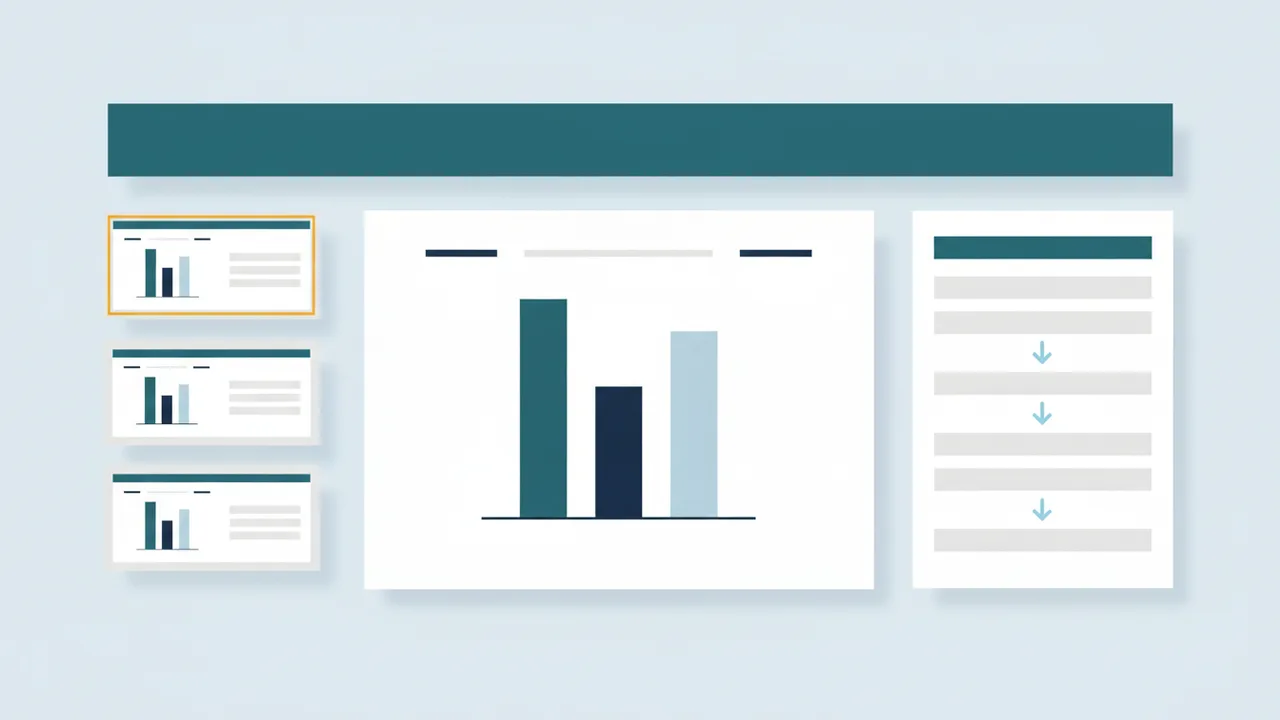
PowerPoint's Accessibility Checker (Review > Check Accessibility) finds missing alt text, missing or duplicate slide titles, unnamed sections, tables without header rows or with merged cells, low text contrast, videos without captions and slides whose reading order looks wrong. Some things are never checked, however: whether your alt text is accurate, whether the reading order actually makes sense, whether color alone carries meaning, whether captions are accurate, and whether the PDF you export is tagged correctly. Those need a person.
How to run the checker
- Open the presentation in PowerPoint for Windows, Mac or the web.
- Select Review > Check Accessibility. The Accessibility pane lists Errors, Warnings and Tips.
- Select a result to jump to the slide and object. Each one explains why it matters and offers recommended actions.
- Fix the errors first, then the warnings and tips, and run the check again.
In current versions, you can keep the checker running while you work, and the status bar shows the result, such as "Accessibility: Investigate". See Accessibility: Investigate for what that status means.
What the checker finds, and how to fix it
| What PowerPoint checks | Category | How to fix it |
|---|---|---|
| Non-text content has alt text, and the alt text isn't a file name | Error | Right-click the object, choose View Alt Text (or Edit Alt Text), and describe it, or check Mark as decorative |
| All slides have titles | Error | Add a title in the slide's title placeholder (see below) |
| Tables specify column header information | Error | Click in the table and check Header Row on the Table Design tab |
| All sections have meaningful names | Error | Right-click the section name in the slide thumbnails and choose Rename Section. Replace names like "Default Section" |
| Document access isn't restricted | Error | If the file uses Information Rights Management, allow programmatic access to content so screen readers can read it |
| Table has a simple structure | Warning | Remove merged and split cells and tables inside tables |
| Sufficient contrast between text and background | Warning | Change the text or background color; normal text needs at least 4.5:1 |
| Inserted audio and video have closed captions | Warning | Select the video, then use Insert Captions on the Playback tab to add a caption file |
| Objects on a slide are in a logical reading order | Warning | Review the slide's reading order (see below) |
| Slide titles and section names are unique | Tip | Make each one distinct, for example "Budget overview (1 of 2)" |
| Suggested alt text | Intelligent Services | Review each generated description and correct it |
Errors make content difficult or impossible for people with disabilities to use, warnings make it difficult in most cases, and tips are improvements. Names vary slightly between versions.
What the checker doesn't check
These are the gaps people most often miss. Each needs a person to look:
- Whether alt text is accurate. "Graph" passes. A description of what the graph shows is what people need.
- Whether the reading order makes sense. The checker can flag slides whose order looks wrong, but only you can decide the right order.
- Whether color alone carries meaning, such as a chart legend or a status shown only in red.
- Whether instructions rely on position or shape, such as "see the box on the right".
- Whether slide titles are descriptive, not just present and unique.
- Whether captions are accurate. The checker warns when an inserted video has no closed captions, but it can't tell whether the captions match what's said.
- Text inside pictures, such as a screenshot of a paragraph, which can't be resized or read unless the alt text repeats it.
- The exported PDF. PowerPoint's checker never looks at it.
Our guide to what the Microsoft Accessibility Checker doesn't check covers each gap and how to check it yourself.
Give every slide a real title
Screen reader users move through a presentation by slide title, and the exported PDF uses slide titles for its headings and bookmarks. A title typed into an ordinary text box doesn't count.
- Use a layout with a title placeholder (Home > Layout) and type the title there.
- Check the outline. View > Outline View lists every slide's title. Slides without one show up blank.
- Make titles unique and descriptive. "Results" on five slides doesn't help anyone. "Results: water quality, 2026" does.
- Need a title that isn't visible? Microsoft's guidance is to position the title off the slide: add it in the title placeholder, then drag the placeholder just past the edge of the slide. The slide still has a title for accessibility, but it isn't shown.
Fix the reading order
Screen readers read the objects on a slide in a set order, which is usually the order they were added, not top to bottom. A slide built in pieces is often read in a jumble.
- Open the Reading Order pane. In PowerPoint for Microsoft 365, 2024 and 2021, select Review > Check Accessibility, open Check reading order under Warnings, point at a slide in the list, select its drop-down arrow and choose Verify object order. The pane lists each object in the order a screen reader will read it. Drag items to reorder them, with the title first. Objects without a number are marked decorative and are skipped.
- In older versions, use the Selection Pane (Home > Arrange > Selection Pane). Microsoft notes that screen readers read objects in the reverse of the order listed there, so the bottom of the list is read first.
- Group related objects, such as an icon and its label, and give the group alt text if it needs one.
- Avoid putting content on the slide master. Logos and text placed on the master or a layout are treated as decoration when exporting to PDF, so important information there won't be read.
Alt text in PowerPoint
- Right-click the object and choose View Alt Text (in some versions, Edit Alt Text). The Alt Text pane opens.
- Describe what it means on this slide, in a sentence or two. For charts, state the main point and put the details in the speaker's text or a table.
- Mark purely decorative objects with Mark as decorative, such as background shapes and lines.
- Review any automatic alt text. PowerPoint can suggest descriptions for pictures; check every one, because it can't know why the image is on the slide.
SmartArt needs extra care: current versions mark the text inside SmartArt as decoration when you export to PDF. Give the graphic alt text that includes its key text. Our alt text guide and alt text for charts and graphs have examples. If you can't find the pane, see alt text pane missing.
Tables, contrast, links and media
- Tables: use a simple table with a header row (Table Design > Header Row). Avoid merged cells and empty cells used for layout.
- Contrast: use the theme's dark-on-light colors and check text over photos. Normal text needs 4.5:1, and large text 3:1.
- Links: write link text that names the destination, not "click here".
- Video and audio: add closed captions to videos, and offer a transcript for audio.
Export to an accessible PDF
Select File > Save As, choose PDF, select Options, and check Document structure tags for accessibility. Then check the PDF.
In current versions (PowerPoint for Windows 2408 and later, PowerPoint for Mac 16.89 and later), Microsoft documents that the export:
- Tags each slide as a section, with the first slide's title (and title or section header slides) as heading level 1 and other slide titles as level 2.
- Adds bookmarks for each section and slide, using your section names and slide titles.
- Keeps alt text, tables with header cells, lists and links.
- Marks decorative objects, headers and footers, slide master content and SmartArt text as artifacts, so screen readers skip them.
That's why slide titles and the reading order matter so much: they become the PDF's headings, bookmarks and reading order.
Fix it automatically
Upload a PowerPoint file to Includoc and you'll see what fails WCAG 2.1 AA in plain English. When you fix it, our AI proposes a title for every slide that's missing one (it can sit just off the slide if you don't want it visible), suggests distinct titles for duplicates, orders each slide's objects top to bottom and left to right with the title first, and drafts alt text for pictures and charts. You confirm each change on the review screen, then download the fixed .pptx and a tagged PDF.
Upload your PDF to fix this automatically
Free check in seconds. Files are deleted within 24 hours.
Standards
| Standard or tool | Reference |
|---|---|
| WCAG 2.1 |
| Standard or tool | Reference |
|---|---|
| WCAG 2.1 |
| Standard or tool | Reference |
|---|---|
| WCAG 2.1 |
| Standard or tool | Reference |
|---|---|
| WCAG 2.1 |
Sources
- Microsoft: Improve accessibility with the Accessibility Checker (opens another website)
- Microsoft: Rules for the Accessibility Checker (opens another website)
- Microsoft: Make your PowerPoint presentations accessible to people with disabilities (opens another website)
- Microsoft: Make slides easier to read by using the Reading Order pane (opens another website)
- Microsoft Learn: PowerPoint PDF accessibility (opens another website)
- W3C: Understanding Success Criterion 1.3.2 Meaningful Sequence (opens another website)
- W3C: Understanding Success Criterion 2.4.6 Headings and Labels (opens another website)
Related
- What the Microsoft Accessibility Checker doesn't check
Microsoft's Accessibility Checker finds missing alt text, titles and table headers, but not whether content makes sense. What it skips and how to check it.
- Word accessibility checker: how to run it and fix every result
How to run Microsoft Word's Accessibility Checker, what Errors, Warnings and Tips mean, how to fix each one, and how to export a properly tagged PDF.
- How to write alt text: a practical guide with examples
Write alt text that says what an image means, not just what it shows: decorative images, logos, signatures, charts and text in images, with examples.
- Alt text for charts and graphs, including how to add it in Excel
Write chart alt text that states the main point, pair it with the data, and add it in Excel, Word, PowerPoint or a PDF. Includes examples by chart type.
- Accessibility: Investigate
What “Accessibility: Investigate” means in Office’s status bar, why some files can’t be checked, and what the checker doesn’t check. How to fix each issue.
- Alt text pane missing in Word, Excel or PowerPoint
Can’t find the Alt Text pane in Word, Excel or PowerPoint? Where it is in each version, how to mark images decorative, and why it sometimes won’t open.