What the Microsoft Accessibility Checker doesn't check
Microsoft's Accessibility Checker finds missing alt text, titles and table headers, but not whether content makes sense. What it skips and how to check it.
Last updated
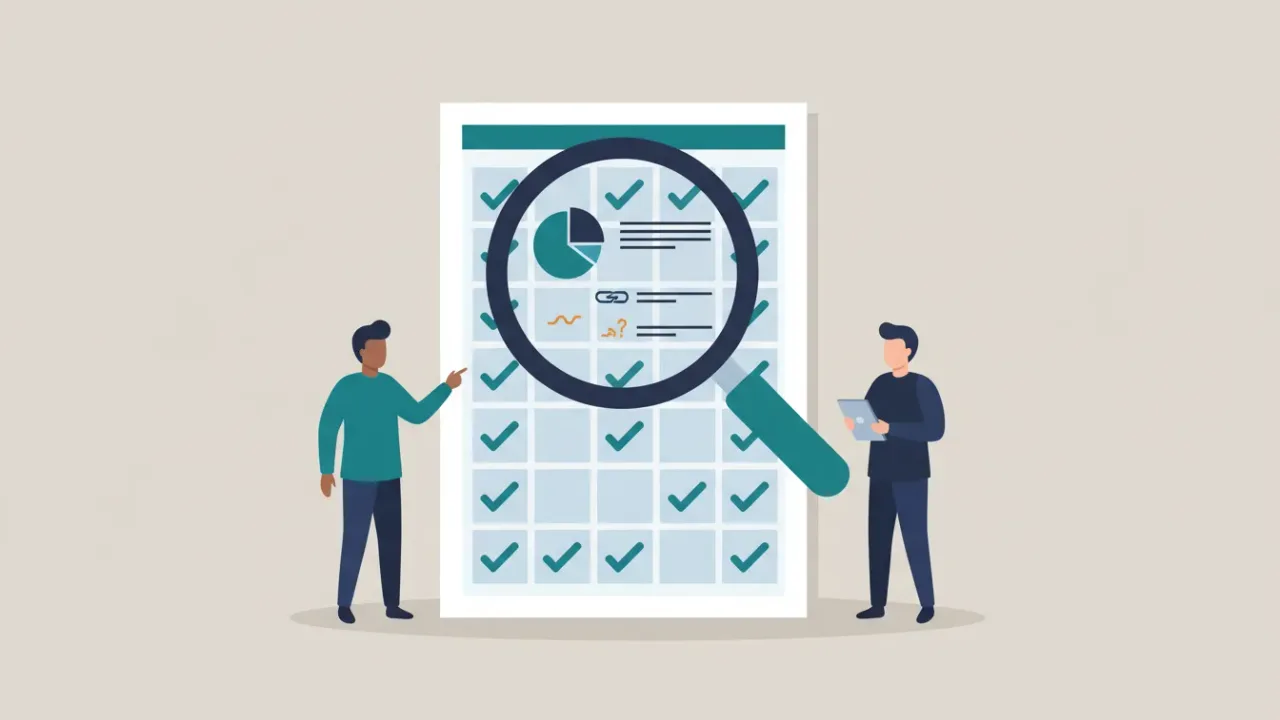
Microsoft's Accessibility Checker in Word, PowerPoint, Excel and Outlook only tests what software can detect in the file: for example, whether alt text exists, whether tables have a header row, whether slides have titles and whether text contrast is too low. It doesn't check whether alt text is accurate, whether the reading order makes sense, whether color alone carries meaning, whether instructions depend on shape or position, whether link text makes sense in context, or whether passages in another language are marked. And it never checks the PDF you export.
What the checker does check
Microsoft publishes the rules the checker uses. In current versions, it checks that:
- Pictures and other non-text content have alt text, and that the alt text isn't just a file name or file extension.
- Tables have header information and a simple structure, without merged, split or nested cells.
- Text has sufficient contrast with its background.
- Word documents use heading styles, and fillable content controls have titles.
- PowerPoint slides have titles, slide titles and section names are unique and meaningful, objects on each slide are in a logical order, and inserted audio and video have closed captions.
- Excel sheet tabs have meaningful names, there are no blank sheets, and negative numbers aren't shown in red alone.
- Access isn't restricted by rights-management settings that block screen readers.
It also lists alt text generated automatically by Office ("Intelligent Services") so you can review it. Microsoft sorts results into Errors, Warnings and Tips, and in Word for Microsoft 365 the Accessibility Assistant groups them by topic. Our Word, PowerPoint and Excel guides explain each result and its fix.
Microsoft is upfront about the limits. Its rules page says the checker catches most kinds of issues but not all of them, recommends reviewing your work yourself, and names information conveyed by color alone as something it can't detect.
What the checker doesn't check
These all need a person. Each maps to a WCAG 2.1 success criterion that the ADA Title II rule requires.
| Not checked | Why it matters | How to check it yourself |
|---|---|---|
| Whether alt text is accurate and useful (1.1.1) | The checker catches alt text that's just a file name, but "image" or "photo" passes, and so does a description of the wrong thing | Read each description without looking at the image. Does it give the same information? |
| Whether the reading order makes sense (1.3.2) | PowerPoint warns about slides whose object order looks wrong, but it can't judge whether the order makes sense, and Word doesn't check order at all | In PowerPoint, review the Reading Order pane on every slide. In Word, keep objects in line with text and listen to the document |
| Whether color alone carries meaning (1.4.1) | "Items in red are overdue" means nothing to someone who can't see red | Look for meaning shown only by color in text, charts, maps and tables, and add words, labels or patterns |
| Instructions that rely on shape, size or position (1.3.3) | "Click the round button on the right" fails people who can't see the layout | Search for words like "above", "below", "left", "right", "round" and "green" in instructions |
| Whether link text makes sense in context (2.4.4) | Current rules don't evaluate link text, so "click here" and "read more" pass | Read the list of links on their own. Does each one say where it goes? |
| Whether headings and labels describe their content (2.4.6) | A real heading called "Section 3" passes, but doesn't help people skim | Read the outline in the Navigation Pane. Could someone find what they need from the headings alone? |
| Passages in another language (3.1.2) | A Spanish paragraph in an English notice is read with English pronunciation | Select the passage and set its language with Review > Language > Set Proofing Language |
| Contrast of text inside pictures and charts (1.4.3, 1.4.11) | The contrast check covers formatted text, not text that's part of an image or chart | Check by eye or with a color contrast tool |
| Pictures of text (1.4.5) | A screenshot of a paragraph passes once it has alt text, but it can't be resized or reflowed | Replace pictures of text with real text wherever you can |
| Whether captions are accurate | PowerPoint and OneNote warn when inserted video or audio has no closed captions, but nothing checks that captions match what's said, or that audio has a transcript | Watch each video with captions on, and provide transcripts for audio |
| The exported PDF | Tags, reading order, artifacts and table headers in the PDF are never checked | Check the PDF with a PDF checker such as our free checker, Acrobat Pro or PAC |
Plain language is also outside the checker, but it isn't a WCAG 2.1 AA requirement. (Reading level is a Level AAA criterion.) It's still one of the most helpful things you can do for readers.
What happens to your file when you export a PDF
The checker looks only at the Office file. Microsoft's own documentation of how current versions (2408 and later on Windows) export to PDF shows several ways a document can look fine in Office and still lose information in the PDF:
- Text inside SmartArt is marked as decoration in the PDF, so screen readers skip it unless the graphic's alt text includes it.
- Content on a PowerPoint slide master or layout, such as a logo or a line of text, is treated as decoration.
- Headers and footers in Word and PowerPoint are treated as decoration, so key information there isn't read.
- An Excel range that isn't formatted as a table becomes a PDF table with no header cells.
- Pictures with no alt text are still tagged as figures, with empty alt text that PDF checkers flag.
- Excel for the web doesn't currently save accessible PDFs at all.
None of these show up in the Accessibility Checker. Check the exported PDF separately.
Why a clean result isn't the finish line
A document can pass the checker and still be hard to use. The checker is designed to catch common, detectable problems, and Microsoft's own guidance says to review your work yourself as well. Listening to the document with a screen reader is the best test of all. A useful way to think about it: the checker tells you whether the pieces are there. A person decides whether they're right.
If you came here from a training course or quiz question about what the checker doesn't check, the answer a course expects depends on its own material and the version it was written for. The table above reflects how the checker behaves in current versions of Microsoft 365.
A 10-minute manual check
- Run the checker and fix every error.
- Read the alt text. Go through each image's alt text and ask whether it gives the same information as the image.
- Read the outline. In Word, open View > Navigation Pane. In PowerPoint, check that every slide's title is unique and descriptive.
- Check the order. In PowerPoint, open the Reading Order pane on each slide. In Word, make sure pictures and shapes sit in line with text.
- Scan for color and position words. Fix anything that depends on color, shape or position alone.
- Read your links on their own. Rewrite any that don't say where they go.
- Mark other languages. Set the language for any passage that isn't in the document's main language.
- Export and check the PDF, if you're publishing one.
- Listen to a page or slide with a screen reader such as NVDA or Narrator, which is built into Windows.
Fix it automatically
Includoc checks Word and PowerPoint files and the PDFs made from them in one place, against WCAG 2.1 AA and PDF/UA. Alongside the machine checks, each report lists the items that need a person, such as color-only meaning, sensory instructions and link text, so they don't get forgotten. When you fix a file, our AI suggests better alt text, link descriptions and heading structure, and you approve each suggestion. Some judgments can only be made by someone who knows the content, and we leave those to you, clearly marked.
Upload your PDF to fix this automatically
Free check in seconds. Files are deleted within 24 hours.
Standards
| Standard or tool | Reference |
|---|---|
| WCAG 2.1 | |
| PDF/UA-1 (ISO 14289-1) | Clause 7.3 |
| Standard or tool | Reference |
|---|---|
| WCAG 2.1 | |
| PDF/UA-1 (ISO 14289-1) | Clause 7.2 |
| Matterhorn Protocol | Checkpoint 09-001 |
| Acrobat rule | Logical Reading Order |
| Standard or tool | Reference |
|---|---|
| WCAG 2.1 |
| Standard or tool | Reference |
|---|---|
| WCAG 2.1 | |
| PDF/UA-1 (ISO 14289-1) | Clause 7.2 |
| Matterhorn Protocol | Checkpoint 11-007 |
Sources
- Microsoft: Improve accessibility with the Accessibility Checker (opens another website)
- Microsoft: Rules for the Accessibility Checker (opens another website)
- Microsoft Learn: Word PDF accessibility (opens another website), PowerPoint PDF accessibility (opens another website) and Excel PDF accessibility (opens another website)
- W3C: Understanding Success Criterion 1.3.2 Meaningful Sequence (opens another website)
- W3C: Understanding Success Criterion 1.3.3 Sensory Characteristics (opens another website)
- W3C: Understanding Success Criterion 1.4.1 Use of Color (opens another website)
- W3C: Understanding Success Criterion 2.4.4 Link Purpose (In Context) (opens another website)
- W3C: Understanding Success Criterion 3.1.2 Language of Parts (opens another website)
Related
- Word accessibility checker: how to run it and fix every result
How to run Microsoft Word's Accessibility Checker, what Errors, Warnings and Tips mean, how to fix each one, and how to export a properly tagged PDF.
- PowerPoint accessibility checker: what it checks and what it doesn't
How to run PowerPoint's Accessibility Checker, fix slide titles, reading order, alt text, tables and contrast, and what the checker never checks.
- Excel accessibility checker: how to make spreadsheets accessible
Run Excel's Accessibility Checker and fix what it finds: sheet names, header rows, merged and blank cells, alt text for charts and pictures, and contrast.
- How to write alt text: a practical guide with examples
Write alt text that says what an image means, not just what it shows: decorative images, logos, signatures, charts and text in images, with examples.
- Accessibility: Investigate
What “Accessibility: Investigate” means in Office’s status bar, why some files can’t be checked, and what the checker doesn’t check. How to fix each issue.