Scanned PDFs and OCR: how to make an image-only PDF accessible
Image-only PDFs have no text for screen readers. Run OCR in Acrobat or OCRmyPDF, check the accuracy, tag the result, and know when to retype instead.
Last updated
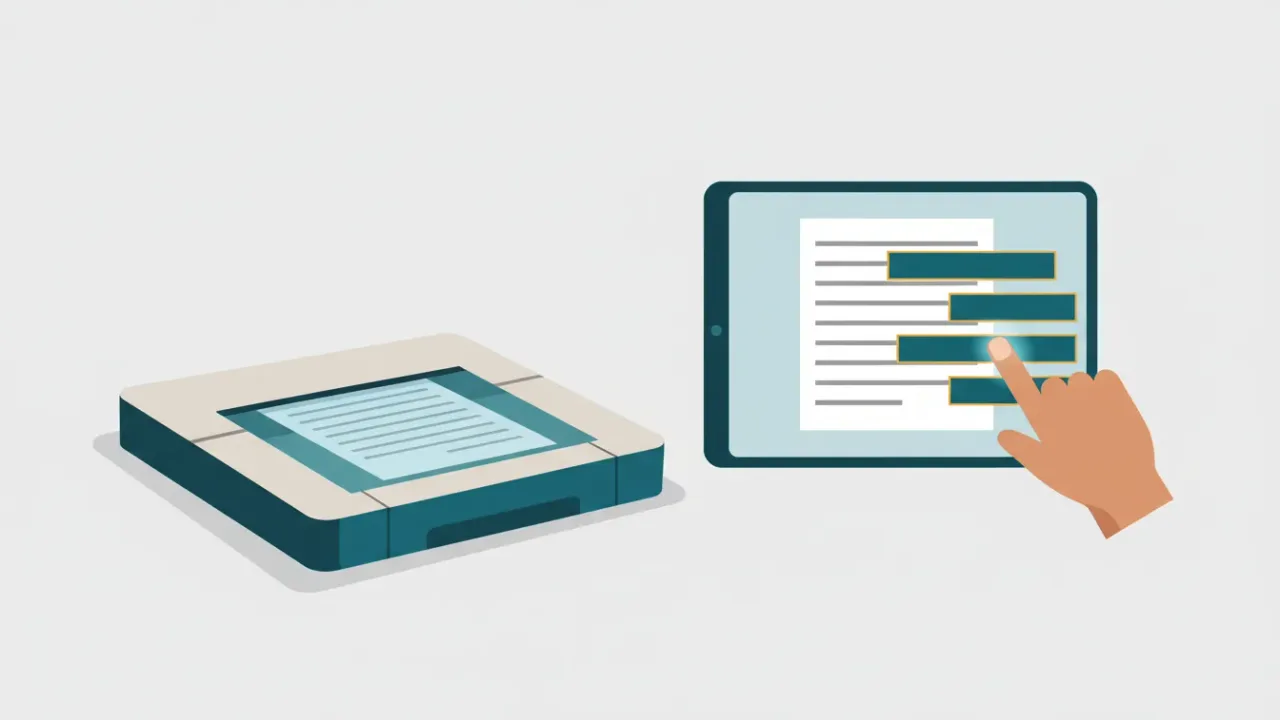
A scanned PDF is a picture of a page, so a screen reader finds nothing to read, and people can't search, copy or enlarge the text. To make it accessible, run optical character recognition (OCR) to add real text, check that text for errors, then tag the document, fix the reading order, add alt text and set the title and language, as you would for any PDF. If the scan is poor, handwritten or full of complex tables, retyping it is often faster and more accurate.
How to tell if a PDF is image-only
- Try to select a sentence. If nothing highlights, or the whole page highlights as one block, the page is an image.
- Search for a word you can see with Ctrl + F. No results usually means no text.
- Run a checker. Acrobat reports Image-only PDF, and our free checker tells you which pages are scans.
- Check every page. Packets often mix real text pages with a few scanned attachments.
Some scanners already run OCR and add a hidden text layer. That helps, but the text may be inaccurate, and it's still not tagged.
What OCR does, and what it doesn't
OCR recognizes the letters in the page image and adds a text layer behind it. The page looks the same, but now there's text that a screen reader can read, that people can search and copy, and that a PDF reader can reflow.
OCR on its own doesn't add headings, lists, table structure, alt text or a reading order. Plan to tag the document afterwards. OCR also makes mistakes, especially with poor scans, small or decorative fonts, stamps, tables and handwriting. Because the recognized text is usually invisible, a sighted reviewer won't notice the errors. Screen reader users are the ones who hear them.
Get a better scan first
OCR accuracy depends mostly on the image you give it. If you can rescan, a few minutes here saves time later:
- Scan at 300 dpi or more. The Tesseract OCR project recommends at least 300 dpi for good results. Very low-resolution scans and faxes lose letter shapes.
- Keep pages straight and clean. Square the page on the glass, remove staples and sticky notes, and clean the scanner glass.
- Use grayscale or black and white for text pages, and color only where color carries meaning, such as a map.
- Avoid photos of documents. Phone pictures add shadows, curves and perspective that OCR handles poorly. Use a scanner or a proper scanning app.
- Handle mixed files page by page. In a packet where only some pages are scans, run OCR on those pages only, so the real text on the other pages isn't replaced.
Option 1: OCR in Adobe Acrobat Pro
- Open the PDF in Acrobat Pro. Save a backup copy first.
- Start text recognition. In the current interface, choose All tools > Scan & OCR > In this file. In older versions, it's Tools > Enhance Scans > Recognize Text > In This File.
- Set the pages and language. Pick the document's language, such as English (US) or Spanish, so accents and spelling are recognized correctly.
- Check the output type under Settings. A searchable image output keeps the original page image and adds hidden text behind it, which is the safest choice. Converting pages to editable text changes how they're drawn and can introduce new problems.
- Select Recognize Text. Acrobat adds a searchable text layer.
- Review uncertain words. Choose All tools > Scan & OCR > Correct recognized text and check Review recognized text. Acrobat highlights words it's unsure about; correct each one in the Recognized as box and select Accept.
- Tag the result. Use All tools > Prepare for accessibility > Automatically tag PDF, then fix the tags as described below.
Option 2: OCRmyPDF (free and open source)
OCRmyPDF is a free command-line tool for Windows, Mac and Linux that uses the Tesseract OCR engine. It's popular for batches of scans. For example:
ocrmypdf -l eng+spa --deskew --rotate-pages scan.pdf scan-ocr.pdf
Useful options:
| Option | What it does |
|---|---|
-l eng+spa | Recognizes English and Spanish (the language packs must be installed) |
--deskew | Straightens pages that were scanned at an angle |
--rotate-pages | Turns sideways or upside-down pages the right way up |
--mode skip | Skips pages that already have text, for mixed documents |
--mode redo | Replaces an earlier, poor OCR layer |
--mode force | Turns every page into an image and runs OCR again; this destroys any real text and flattens form fields, so use it with care |
--output-type pdf | Saves a regular PDF instead of converting to PDF/A, which can matter if you need to keep existing tags |
The --mode option arrived in OCRmyPDF 17. Older versions use --skip-text, --redo-ocr and --force-ocr, which still work.
OCRmyPDF adds a text layer but doesn't create accessibility tags. Its documentation notes that it can't rebuild a tag tree to match newly recognized text, and that forcing or redoing OCR discards any tags a file already had. Plan to tag the output in a tool like Acrobat Pro.
Check the OCR accuracy
- Copy and paste a page. Select all the text on a page, paste it into a plain text editor, and compare it with the image.
- Check what matters most. Names, dates, dollar amounts, phone numbers, addresses and agenda item numbers are the costliest mistakes.
- Look for common confusions: zero and capital O; one, lowercase L and capital I; "rn" read as "m"; 5 and S; and missing accents in Spanish text.
- Check tables closely. OCR often merges columns or splits rows, which scrambles the numbers.
- Listen to a page with a screen reader. Garbled text is obvious when you hear it.
- Spot-check every page of long documents, starting with the worst-quality pages.
Tag the document after OCR
Once the text is right, treat the file like any other PDF:
- Autotag it, then review the tag tree. See what is a tagged PDF.
- Fix headings, lists and tables. Scans of typed documents often come out as one paragraph per line.
- Mark scan noise as artifacts: specks, punch holes, shadows at the page edge and stamps that carry no meaning.
- Handle signatures and handwriting. Give a signature short alt text, such as "Signature". If handwritten notes carry information, include it as text.
- Set the title and language, then check the reading order.
Our full guide on how to make a PDF accessible covers each step.
When to retype or rebuild instead
OCR isn't always the right tool. Retyping or rebuilding is often better when:
- The document is handwritten. OCR rarely reads handwriting reliably. Provide a typed transcript.
- The scan is poor, such as a fax, a copy of a copy, or a crooked or faint page.
- It contains complex tables or forms. Rebuild tables as real tables, and forms with real fields; see our forms guide.
- You'll update or reuse it. A Word file is easier to maintain than a fixed-up scan.
- It's short. Retyping a two-page notice can take less time than correcting and tagging the OCR.
Old scans that nobody uses may fall under the ADA Title II archived content or preexisting documents exceptions; see Title II exceptions explained (general information, not legal advice). You'd still need to provide an accessible version if someone asks.
Stop scans at the source
The cheapest scan to fix is the one you never post.
- Post the original digital file instead of scanning a printout.
- For signed documents, post an accessible version (for example, with the signer's name typed) and keep the signed original on file. Check your records rules first.
- Set your office scanner to run OCR in the right language, and remember that its output still needs tagging and checking.
Fix it automatically
Includoc detects image-only pages, runs OCR in English and Spanish, tags the result and shows you the OCR confidence for each page. Pages with low confidence are listed for a person to check, or for our human-verified tier. OCR can't reliably read handwriting, so expect those pages to need a person.
Upload your PDF to fix this automatically
Free check in seconds. Files are deleted within 24 hours.
Standards
| Standard or tool | Reference |
|---|---|
| WCAG 2.1 | |
| PDF/UA-1 (ISO 14289-1) | Clause 7.1 |
| Matterhorn Protocol | Checkpoint 08-002 |
| Acrobat rule | Image-only PDF |
| Standard or tool | Reference |
|---|---|
| WCAG 2.1 | |
| Matterhorn Protocol | Checkpoint 08-001 |
Sources
- W3C: PDF7: Performing OCR on a scanned PDF document to provide actual text (opens another website)
- W3C: Understanding Success Criterion 1.4.5 Images of Text (opens another website)
- W3C: Understanding Success Criterion 1.1.1 Non-text Content (opens another website)
- OCRmyPDF: Documentation (opens another website) and Advanced features (opens another website) (processing modes and tagged PDFs)
- Tesseract OCR: Project page (opens another website) and Improving the quality of the output (opens another website)
- Adobe: Recognize text in scanned documents (opens another website) and Fix text issues in scanned PDFs (opens another website)
- Adobe: Create and verify PDF accessibility (Acrobat Pro) (opens another website)
Related
- How to make a PDF accessible: a step-by-step guide
Make a PDF accessible from start to finish: fix the source file, export with tags, then check and fix tags, reading order, alt text, tables and forms.
- What is a tagged PDF? Tags, the tag tree and how to check them
A tagged PDF has hidden structure that tells screen readers what each part is. Learn the common tags, artifacts, role maps and how to view and fix tags.
- Accessible agendas, packets and minutes: a weekly playbook for clerks
A repeatable workflow for clerks and comms staff to make meeting agendas, agenda packets and minutes accessible every week, from template to posting.
- Image-only PDF – Failed
Acrobat’s “Image-only PDF – Failed” means pages are pictures of text, usually scans. Why OCR alone isn’t enough, and how to make a scanned PDF accessible.
- Character encoding – Failed
Acrobat’s “Character encoding – Failed” means some text can’t be turned into real characters, so it reads as garbage. How to test it and how to fix it.