What is a tagged PDF? Tags, the tag tree and how to check them
A tagged PDF has hidden structure that tells screen readers what each part is. Learn the common tags, artifacts, role maps and how to view and fix tags.
Last updated
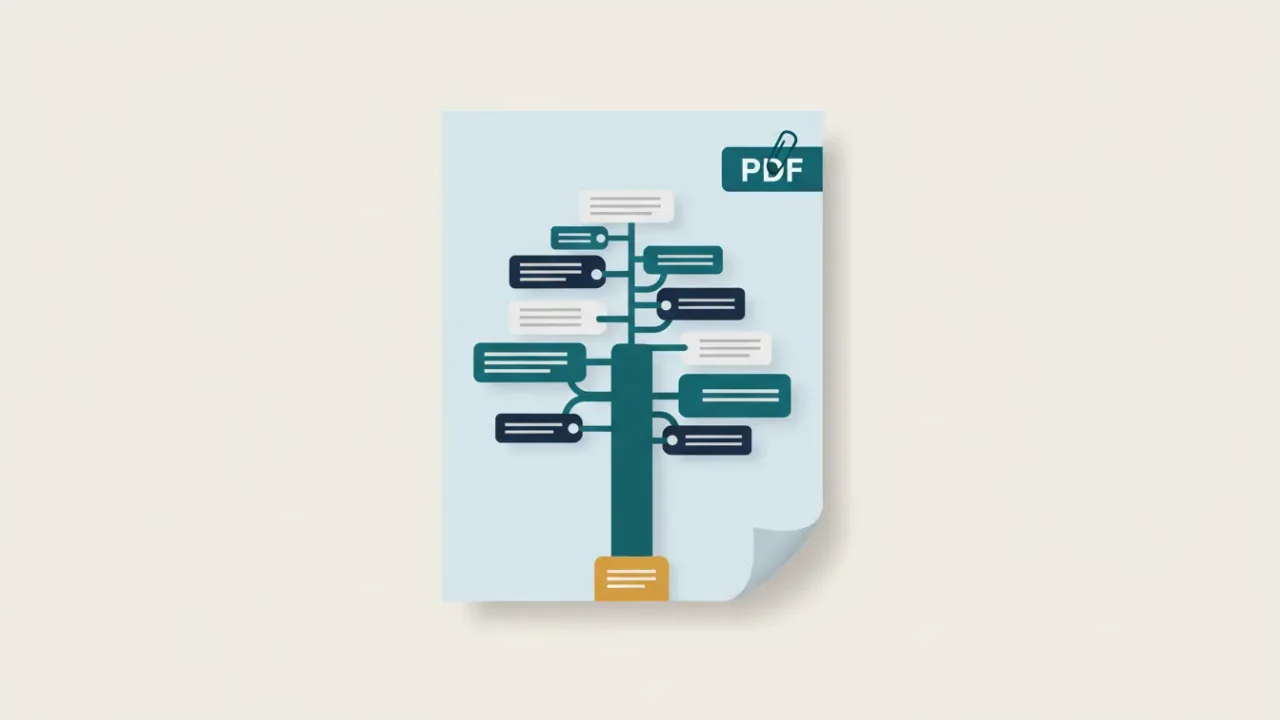
A tagged PDF is a PDF that contains a hidden layer of structure, called tags, that labels each piece of content: this is a heading, this is a paragraph, this is a list, this is a table, this image shows a detour map. Screen readers, braille displays, read-aloud tools and reflow use the tags to present the document in a logical order. Tags are required for an accessible PDF, but a PDF isn't accessible just because it's tagged. The tags also have to be correct.
What tags do
A PDF page is a set of drawing instructions: put these letters here, draw a line there, place this image in the corner. That's all a PDF needs to look right on screen or paper, but it says nothing about meaning. Without tags, a screen reader has to guess which text is a heading, where a column ends and whether a run of numbers is a table.
A tagged PDF adds a separate structure, the tag tree (also called the structure tree). It groups the page content into elements such as headings, paragraphs, lists and tables, and puts them in reading order. Each tag points to the content it describes. Tags never change how the document looks.
The technical detail, briefly. The tag tree starts at the document's structure tree root. Content on each page is linked to its tag with a marked-content identifier, and the document's catalog declares that the file is tagged. The PDF specification (ISO 32000) defines the standard tag types, and PDF/UA (ISO 14289) sets out how they must be used for accessibility. You don't need to know this to fix tags, but it explains why tags live in a separate panel from the page content.
What a tag tree looks like
Here's a simplified tag tree for the first page of a meeting agenda:
Document
  H1      "City Council Regular Meeting, March 9, 2027"
  P       "6:00 p.m., Council Chambers, City Hall"
  H2      "1. Call to order"
  H2      "2. Consent calendar"
  L
    LI
      Lbl    "a."
      LBody  "Approve minutes of February 23, 2027"
    LI
      Lbl    "b."
      LBody  "Accept the quarterly investment report"
  H2      "3. Public hearing: Oak Avenue bike lanes"
  Figure  Alt: "Map of the proposed bike lanes on Oak Avenue"
  Link    "Staff report: Oak Avenue bike lanes (PDF)"
A screen reader follows this tree from top to bottom. Because the headings are tagged, someone can jump straight to item 3. Because the list is tagged, they hear "list, 2 items". Because the map has alt text, they know what it shows.
Common PDF accessibility tags
| Tag | What it means | Notes |
|---|---|---|
Document | The root that holds everything else | Most tag trees start here |
Part, Sect, Div | Groups of related content | For organization; most screen readers don't announce them |
H1 to H6 | Headings, levels 1 to 6 | Go down one level at a time, and don't mix them with the generic H tag |
P | Paragraph | The most common tag |
L, LI, Lbl, LBody | List, list item, label (the bullet or number) and list body | A list holds items; each item holds a label and a body |
Table, TR, TH, TD | Table, table row, header cell, data cell | Header cells need a scope; THead, TBody and TFoot can group rows |
Figure | An image, chart or graphic | Needs alt text, or should be an artifact if it's decoration |
Formula | Math | Needs alt text that reads the formula aloud |
Link | A link | Holds the link text and the clickable link area (an annotation) |
Form, Annot | Form fields and other annotations | Each fillable field sits in a Form tag |
Caption | A caption for a table or figure | Sits next to the item it describes |
TOC, TOCI | Table of contents and its entries | Entries usually contain links |
Span | A piece of text inside a paragraph | Often used to mark a phrase in another language |
Note, Reference | Footnotes or endnotes, and references to them |
Our guides on tables, forms and alt text go deeper on those tags.
Artifacts: content screen readers should skip
"Artifact" isn't a tag. It's how a PDF marks content that isn't part of the document's meaning: running headers and footers, page numbers, decorative lines, background shapes and watermarks. Artifacts sit outside the tag tree, so assistive technology skips them, and readers don't hear "Page 4 of 12" in the middle of a sentence.
Under PDF/UA, every piece of content must be either tagged or marked as an artifact. Nothing can be left in between. When a checker reports content is tagged or artifacted, it has found content that's neither.
How to decide:
- Page numbers, running headers and footers: artifact.
- Decorative borders, lines and background images: artifact.
- A logo next to the organization's name in text: usually artifact.
- A photo or chart that adds information:
Figurewith alt text.
Role maps: custom tag names
Word, InDesign and other tools sometimes create tags named after styles, such as BodyText or Subtitle. Assistive technology only understands the standard types, so the PDF carries a role map that says what each custom tag means, for example BodyText means P.
Problems appear when a custom tag has no mapping, when a standard tag is remapped to something else (PDF/UA doesn't allow it), or when mappings loop back on themselves. PAC reports these as non-standard structure type is remapped. In InDesign, you can avoid most of them by mapping each paragraph style to a standard tag before export.
Tagged is not the same as accessible
Automatic tagging gets you a tag tree quickly, but it often gets the details wrong. Common problems in auto-tagged files:
- Large text tagged
Pinstead of a heading, or headings at the wrong level. - Tables tagged as paragraphs, or header rows tagged
TD. - Page numbers and running headers tagged as content instead of artifacts.
- Decorative images tagged as
Figurewith no alt text. - Columns read in the wrong order.
- Lists tagged as paragraphs with typed bullets.
A checker that says "Tagged PDF: Passed" only confirms that tags exist. Whether they're right takes a closer look, partly by software and partly by a person.
How to tag a PDF for accessibility
- Tag at the source if you can. Export from Word or PowerPoint with Document structure tags for accessibility turned on, or from InDesign with Create Tagged PDF. Fixes you make in the source file survive the next export; fixes made in the PDF don't.
- If you only have the PDF, autotag it. In Adobe Acrobat Pro, use All tools > Prepare for accessibility > Automatically tag PDF (in older versions, Tools > Accessibility > Autotag Document). If the file already has tags, decide first whether to repair them or replace them, because autotagging can overwrite someone's earlier work.
- Walk the tag tree. Open the Tags panel and go top to bottom. Change wrong tag types (right-click the tag and choose Properties), drag tags into the right order, and delete empty ones.
- Use the Reading Order tool for bigger fixes. Choose All tools > Prepare for accessibility > Fix reading order, draw a rectangle around content and set it as a heading, figure, table or background (artifact).
- Finish the details. Add alt text, set table header cells and scope, and set the document title and language.
- Check and listen. Run Acrobat's checker and PAC, then listen to the document with a screen reader or PAC's screen reader preview.
Our step-by-step guide on how to make a PDF accessible covers each of these in more detail.
How to view a PDF's tags
- Adobe Acrobat Pro: open the Tags panel. In the current interface it's listed as Accessibility tags under View > Show/Hide > Side panels; in older versions it's View > Show/Hide > Navigation Panes > Tags. Choose Highlight Content from the panel's options menu to see which content each tag covers.
- PAC: this free Windows checker tests PDF/UA and WCAG requirements, and its screen reader and structure preview shows what a screen reader will read, and in what order.
- Includoc's free PDF tag viewer: upload a PDF and see its tag tree and reading order in your browser, with no software to install.
- A screen reader: NVDA (free for Windows) or VoiceOver (built into Macs) shows you the result rather than the structure, which is what matters most.
The free Adobe Acrobat Reader can tell you whether a file is tagged (File > Properties), but it can't show or edit the tags.
Fix it automatically
Includoc builds a full tag tree for untagged PDFs, or repairs the existing tags when they're good enough to keep. It maps custom tags to standard ones, marks page furniture as artifacts, tags links, form fields and annotations, and sets a column-aware reading order. Our AI pass then checks heading levels, lists, table headers and reading order against the rendered page. Anything that needs judgment, such as alt text or a complex table, goes to a review screen for a person to confirm.
Upload your PDF to fix this automatically
Free check in seconds. Files are deleted within 24 hours.
Standards
| Standard or tool | Reference |
|---|---|
| WCAG 2.1 | |
| PDF/UA-1 (ISO 14289-1) | Clause 7.1 |
| Acrobat rule | Tagged PDF |
| Standard or tool | Reference |
|---|---|
| WCAG 2.1 | |
| PDF/UA-1 (ISO 14289-1) | Clause 7.1 |
| Matterhorn Protocol | Checkpoint 01-005 |
| PAC wording | Content is tagged or artifacted |
| Acrobat rule | Tagged content |
| Standard or tool | Reference |
|---|---|
| WCAG 2.1 | |
| PDF/UA-1 (ISO 14289-1) | Clause 7.1 |
| Matterhorn Protocol | Checkpoint 02-001 |
| PAC wording | Non-standard structure type is remapped |
Sources
- ISO: ISO 32000-2, PDF 2.0 (opens another website) and ISO 14289-1:2014, PDF/UA-1 (opens another website)
- PDF Association: Tagged PDF Best Practice Guide: Syntax (opens another website)
- W3C: PDF4: Hiding decorative images with the Artifact tag (opens another website), PDF6: Using table elements (opens another website), PDF9: Providing headings (opens another website) and PDF21: Using List tags (opens another website)
- W3C: Understanding Success Criterion 1.3.1 Info and Relationships (opens another website)
- Adobe: Edit document structure with the Content and Tags panels (opens another website)
- Adobe: Create and verify PDF accessibility (Acrobat Pro) (opens another website)
Related
- How to make a PDF accessible: a step-by-step guide
Make a PDF accessible from start to finish: fix the source file, export with tags, then check and fix tags, reading order, alt text, tables and forms.
- Accessible PDF documents: what they are and how to check one
What makes a PDF accessible, how an accessible PDF differs from a regular one, and quick ways to tell whether any PDF is accessible.
- PDF/UA explained: PDF/UA-1, PDF/UA-2 and the Matterhorn Protocol
PDF/UA is the ISO standard for accessible PDF files. What PDF/UA-1 and PDF/UA-2 require, how Matterhorn and validators test them, and the identifier.
- Content is tagged or artifacted
PAC fails “Content is tagged or artifacted” when page content is neither tagged nor marked as decoration. What it means and how to fix it.
- Non-standard structure type is remapped
PAC fails “Non-standard structure type is remapped” when custom tags aren’t mapped to standard ones in the role map. What it means and how to fix it.