Accessible tables in PDFs: header cells, scope and complex tables
How to tag tables in a PDF so screen readers can follow them: TH cells, scope, Headers and IDs for complex tables, and fixes in Word and Acrobat.
Last updated
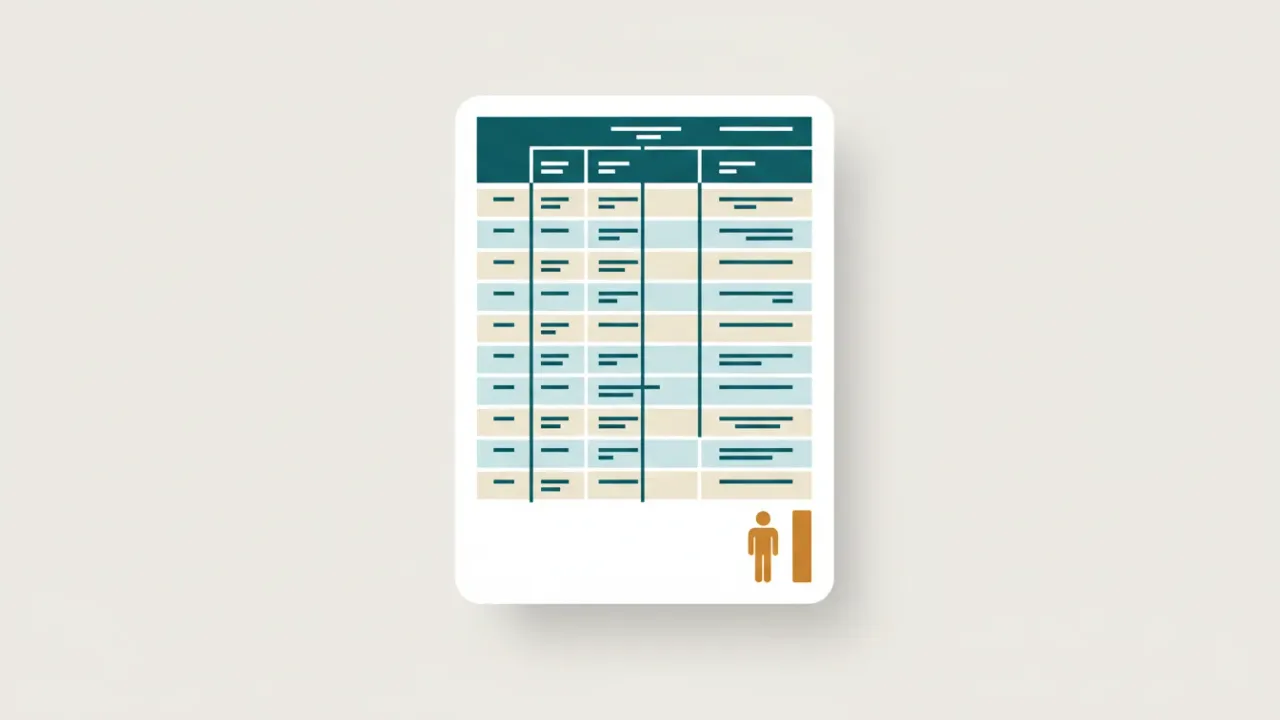
A table in a PDF is accessible when it's tagged as a real table (Table, TR, TH and TD), every header cell is tagged TH with a scope of Row or Column, and complex tables link each data cell to its headers with IDs. That lets a screen reader say "Library, fiscal year 2027, 2.4 million" instead of reading out a stream of numbers. The easiest place to get this right is the source document. If you only have the PDF, Acrobat Pro's Table Editor can fix it.
How screen readers read tables
A sighted reader glances up a column and across a row to understand a number. A screen reader user moves through the table one cell at a time, and the screen reader announces the right headers for each cell, but only if the table is tagged properly.
Take a simple budget table:
| Department | FY 2026 | FY 2027 |
|---|---|---|
| Parks | $1.1 million | $1.2 million |
| Library | $2.3 million | $2.4 million |
Tagged correctly, moving to the last cell sounds like "Library, FY 2027, 2.4 million". Untagged, it's just "2.4 million", and the listener has to remember the layout of the whole table to work out what that means.
The tags a table needs
| Tag or attribute | What it does |
|---|---|
Table | Holds the whole table |
TR | One table row |
TH | A header cell |
TD | A data cell |
THead, TBody, TFoot | Optional groups for header, body and footer rows |
Caption | An optional caption that says what the table shows |
Scope (on TH) | Says whether the header applies to its Column, its Row, or Both |
| RowSpan and ColSpan | Mark cells that span several rows or columns (merged cells) |
ID (on TH) and Headers (on TD) | Explicitly link each data cell to all of its headers, for complex tables |
Two structural rules catch many tables. First, TH and TD cells must sit directly inside TR rows. Second, every row must have the same number of cells once spans are counted, which checkers call regularity. When they don't line up, values get read under the wrong header. Acrobat reports these problems under its table rules; see table rows, TH and TD, headers and regularity.
Simple tables
Most tables in agendas, budgets, schedules and reports are simple: one row of column headers, and often a first column that names each row.
- Tag the cells in the header row as
THwith Scope set to Column. - If the first column identifies each row (department names, dates, course codes), tag those cells as
THwith Scope set to Row. - Tag everything else as
TD.
That's enough for a screen reader to announce the right headers for every cell. When header cells have no scope and no IDs, PAC reports them as TH has associated cells failures.
Complex tables
A table is complex when scope alone can't describe it. Signs of a complex table:
- Two or more rows of column headers, such as "Revenue" spanning "FY 2026" and "FY 2027".
- Header cells in the middle of the table, such as subheadings for sections.
- Merged cells, or row headers that span several rows.
You have two options.
Option 1: simplify (usually best). Split one complex table into several simple ones, repeat labels instead of merging cells, and move notes out of the table into text. Simpler tables are easier for everyone to read, not just screen reader users.
Option 2: use Headers and IDs. Give every TH a unique ID. Then give every TD a Headers attribute that lists the IDs of all the headers that apply to it. This is precise but slow by hand, and every edit to the table means updating the IDs.
Layout tables: don't tag them as tables
Sometimes a table is used only to position content, such as two columns of text in a newsletter or a grid of logos. That's a layout table. In a PDF, its content should be tagged as headings, paragraphs and figures, not as a Table. Otherwise a screen reader announces "table with 2 columns" around ordinary text, and people start hunting for data that isn't there. In Word, use real columns or styles for layout instead.
Fix tables in Word before you export
- Insert a real table with Insert > Table. Don't build tables from tabs, spaces or drawn lines.
- Mark the header row. Right-click in the first row, choose Table Properties, open the Row tab and check Repeat as header row at the top of each page. Also check Header Row under Table Design > Table Style Options. Word uses the repeating header row to identify header cells, including in the exported PDF.
- Keep the structure simple. Avoid merged or split cells, tables inside tables, and blank rows or columns used for spacing. Give data tables visible borders or shading: Microsoft documents that some newer builds of Word export a table with neither as a layout table, with each cell tagged as a plain paragraph.
- Fill blank cells that mean something. Write "None", "0" or "Not applicable" rather than leaving a cell empty.
- Say what the table shows. Add a caption (References > Insert Caption) or a sentence before the table.
- Export with tags. Use File > Save As > PDF, select Options, and check Document structure tags for accessibility.
- Check the PDF. Exports can still miss things, especially header scope and merged cells, so check the result in a checker before posting.
Our Word accessibility checker guide covers the "Missing table header" result and other table warnings.
Fix tables in Acrobat Pro
- Open the Reading Order tool. In the current interface, choose All tools > Prepare for accessibility > Fix reading order; in older versions, Tools > Accessibility > Reading Order.
- Make sure it's tagged as a table. If Acrobat didn't recognize the table, draw a rectangle around it and select Table in the dialog.
- Open the Table Editor. Select the table and choose Table Editor in the dialog, or right-click the table and choose it there. Acrobat outlines every cell. The table must already be tagged as a table.
- Set the header cells. Select the header cells, right-click and choose Table Cell Properties. Set the type to Header Cell and the scope to Column (or Row for row headers). Set row and column spans for merged cells here too.
- Link complex headers. For complex tables, give each header cell an ID in the same dialog, then add the matching header IDs to each data cell.
- Check the tag structure. In the Tags panel, the table should read
Table, thenTRrows, thenTHandTDcells, with the same number of cells in every row. - Run the checks again in Acrobat and PAC.
Acrobat's checker also looks for a table summary. Adobe describes summaries as optional, and WCAG doesn't require one, but a sentence that explains how a complex table is organized does help screen reader users.
Check your tables
- Listen to one. In NVDA, move into a table and use Ctrl + Alt + arrow keys to move between cells. You should hear the right headers each time you move.
- Run a checker. Our free checker, Acrobat's table rules and PAC each catch missing headers and irregular rows.
- Have a person confirm complex tables. Software can confirm that headers exist, but not that they're the right headers.
Fix it automatically
Includoc rebuilds table tags as Table, TR, TH and TD and sets the scope of every header cell. Our AI looks at the rendered page to find header rows and columns, and you confirm them on the review screen. Simple irregular tables are fixed automatically. Complex tables with merged cells or several header levels are flagged for a person to check, and our human-verified tier can do that check for you.
Upload your PDF to fix this automatically
Free check in seconds. Files are deleted within 24 hours.
Standards
| Standard or tool | Reference |
|---|---|
| WCAG 2.1 | |
| PDF/UA-1 (ISO 14289-1) | Clause 7.5 |
| Matterhorn Protocol | Checkpoint 15-001, Checkpoint 15-002 |
| Acrobat rule | Headers |
| Standard or tool | Reference |
|---|---|
| WCAG 2.1 | |
| PDF/UA-1 (ISO 14289-1) | Clause 7.5 |
| Matterhorn Protocol | Checkpoint 15-003 |
| PAC wording | TH has associated cells |
| Acrobat rule | TH and TD |
| Standard or tool | Reference |
|---|---|
| WCAG 2.1 | |
| PDF/UA-1 (ISO 14289-1) | Clause 7.2 |
| Acrobat rule | Regularity |
| Standard or tool | Reference |
|---|---|
| WCAG 2.1 | |
| PDF/UA-1 (ISO 14289-1) | Clause 7.2, Clause 7.5 |
| Matterhorn Protocol | Checkpoint 09-004 |
| Acrobat rule | Rows |
Sources
- W3C Web Accessibility Initiative: Tables tutorial (opens another website) and Tables with multi-level headers (opens another website)
- W3C: PDF6: Using table elements for table markup in PDF documents (opens another website)
- W3C: PDF20: Using Adobe Acrobat Pro's Table Editor to repair mistagged tables (opens another website)
- W3C: Understanding Success Criterion 1.3.1 Info and Relationships (opens another website)
- Microsoft: Make your Word documents accessible to people with disabilities (opens another website) (includes accessible tables)
- Microsoft Learn: Word PDF accessibility (opens another website) (how Word tags tables when exporting)
- Adobe: Reading Order tool (opens another website), including the Table Editor
- Adobe: Create and verify PDF accessibility (Acrobat Pro) (opens another website)
Related
- What is a tagged PDF? Tags, the tag tree and how to check them
A tagged PDF has hidden structure that tells screen readers what each part is. Learn the common tags, artifacts, role maps and how to view and fix tags.
- How to make a PDF accessible: a step-by-step guide
Make a PDF accessible from start to finish: fix the source file, export with tags, then check and fix tags, reading order, alt text, tables and forms.
- Word accessibility checker: how to run it and fix every result
How to run Microsoft Word's Accessibility Checker, what Errors, Warnings and Tips mean, how to fix each one, and how to export a properly tagged PDF.
- TH has associated cells
PAC fails “TH has associated cells” when a table header isn’t linked to its data cells. Learn about scope, headers and IDs, and how to fix it.
- Table rows, TH and TD, Headers and Regularity – Failed
What Acrobat’s table rules (Rows, TH and TD, Headers, Regularity and Summary) check, why tables fail them, and how to fix table tags in Acrobat Pro.