Canvas accessibility checker: what it checks, and what it misses
What the Canvas accessibility checker reviews, why it skips uploaded PDFs and slides, and how UDOIT, Anthology Ally and a document fixer fill the gap.
Last updated
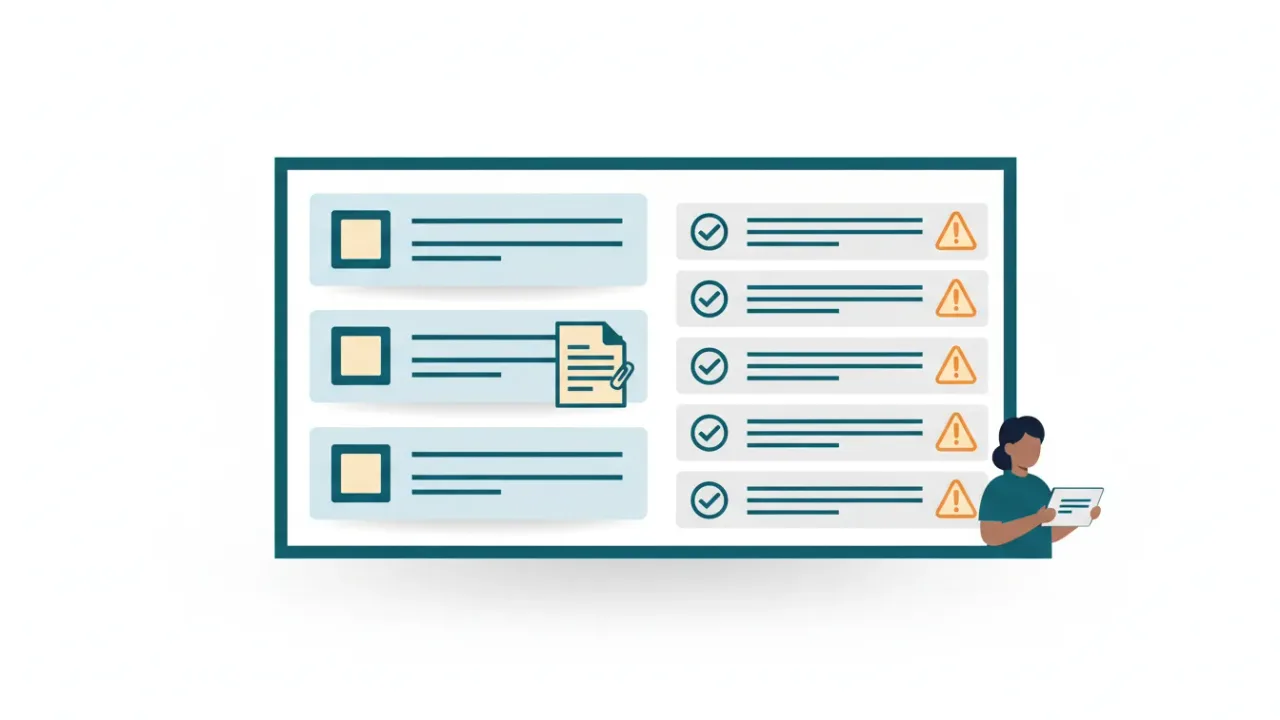
The Canvas accessibility checker is a tool built into Canvas's Rich Content Editor. It checks the page, assignment, discussion or announcement you're editing for common problems: missing alt text, alt text that's just a file name, skipped heading levels, low color contrast, text that should be a list, and tables without headers or captions. Canvas also offers a course-level checker, if your institution turns it on, that scans pages and assignments across a whole course. Neither one opens the files you upload, such as PDFs, Word documents and slides. For those, schools use tools such as UDOIT or Anthology Ally to find problems, and a document tool to fix them.
What is the accessibility checker in Canvas?
The checker lives in the Rich Content Editor, the editor you use for pages, assignments, discussions, announcements and the syllabus.
- Open the content in the editor. Edit the page, assignment or discussion as usual.
- Select the Accessibility Checker icon at the bottom of the editor. An indicator appears on it when the checker finds issues.
- Work through each issue. The sidebar highlights the problem in your content, explains it and, where it can, gives you a way to fix it, such as a box for alt text.
- Select Apply, move to the next issue, and save your content when you're done.
Instructure's guide says the tool "only verifies content created within the Rich Content Editor". It tests these rules:
| Rule | What it looks for |
|---|---|
| Adjacent links | Two links next to each other that go to the same place, which should be one link |
| Heading paragraphs | Headings longer than 120 characters |
| Image alt text | Images with no alt text |
| Image alt filename | Alt text that's just the image's file name |
| Image alt length | Alt text of 120 characters or more (a recommendation) |
| Large text contrast | Large text (18 point, or 14 point bold) with a contrast ratio below 3:1 |
| Small text contrast | Smaller text with a contrast ratio below 4.5:1 |
| Lists | Text that looks like a list but doesn't use the list tools |
| Sequential headings | Heading levels that skip, such as Heading 2 straight to Heading 4 |
| Table captions | Tables without a caption describing their contents |
| Table header scope | Header cells without a scope |
| Table header | Tables with no header cells at all |
Contrast checks use your institution's theme settings, and the heading check doesn't confirm that a page's first heading is Heading 2. In Canvas, Heading 1 is reserved for the page title.
The course-level accessibility checker
Instructure has added a second, course-wide Accessibility Checker that institutions can turn on. Where it's enabled, instructors select Accessibility in the course navigation, then Scan Course.
- It scans Pages and Assignments and shows the issues for the whole course in one report, which you can search and work through item by item.
- Its rules are similar to the editor checker's, plus a check for Heading 1 used inside page content. Its alt text length check flags descriptions over 200 characters.
- It keeps up as you work. After the first full scan, new and edited pages and assignments are checked automatically.
- It has limits. It can't scan courses with more than 1,000 items, or any item whose HTML is larger than 125 KB, and it doesn't cover external tools, embedded third-party content, iframes, custom scripts, or interactive activities such as quizzes and simulations.
- It doesn't open uploaded files. PDFs, Word documents and slides are still outside its scope.
If you don't see the Accessibility link in your course, your institution hasn't enabled it.
What the Canvas checker doesn't check
- Uploaded files. PDFs, Word documents, PowerPoint slides and spreadsheets in Files or modules are outside both checkers, which leaves a large part of many courses unchecked.
- Whether alt text is meaningful. "Picture of a graph" passes; a description of what the graph shows is what students need.
- Whether link text makes sense, beyond flagging duplicate adjacent links. "Click here" passes.
- Color-only meaning, such as "items in green are optional".
- Video and audio. Captions and transcripts aren't checked.
- Content from outside tools, such as embedded publisher content or other apps added to your course.
Finding problems in uploaded files: UDOIT and Ally
Two tools are common at colleges for looking beyond the editor.
UDOIT (Universal Design Online content Inspection Tool) was created at the University of Central Florida in 2014 and rebuilt with Cidi Labs in 2020. It's open source. It scans a Canvas course, reports accessibility issues in the content built in Canvas and helps you fix them. For uploaded files, UDOIT itself says they can't be automatically scanned: it lists PDFs, Word documents and PowerPoint files for you to review by hand, mark as reviewed or replace, but it doesn't check or fix the documents.
Anthology Ally (formerly Blackboard Ally) is a licensed integration that works in Canvas and other learning platforms. It checks course files such as PDFs, Word documents, PowerPoint files and images, as well as content created in Canvas, shows an accessibility score next to each item, and gives instructors feedback on what to fix. It also creates alternative formats from the original file for students to download, such as semantic HTML, ePub, audio, electronic braille, an OCR version of scanned PDFs and a tagged PDF of Word and PowerPoint files. Those alternatives help students, but the original file in your course stays as it is until someone fixes it and uploads the new version.
Neither tool fixes the underlying documents. That's the gap many instructional designers spend their time on.
A workflow for faculty PDFs and slides
- Find the files. Use your Ally or UDOIT reports, or browse the course's Files, to list every PDF, Word and PowerPoint file.
- Prioritize. Start with what students need right now: the syllabus, assignment instructions, required readings and any forms.
- Fix at the source when you have it. For Word and PowerPoint files, run Microsoft's checker and export a tagged PDF. See our Word and PowerPoint guides.
- Fix PDFs without a source. Scanned readings need OCR and tagging; see scanned PDFs and OCR. For publisher readings, ask your library or disability services office about accessible versions first.
- Replace the file in Canvas. Upload the fixed file with the same name and choose to replace the original, then open the links in your modules to make sure they show the new version.
- Re-check. Run Ally or UDOIT again to confirm the score improved.
Why it matters under Title II
Public colleges and universities are covered by the ADA Title II web rule, which requires WCAG 2.1 AA for web content and the documents posted with it. The Department of Justice proposed exceptions for password-protected course content but didn't include them in the final rule, so course materials in Canvas are covered on the same timeline as everything else. Documents about one specific student, such as a graded paper returned through Canvas, may fall under the narrower exception for individualized, secured documents. See our ADA Title II guide for dates and details (general information, not legal advice).
Fix it automatically
Includoc works alongside Canvas. Download a PDF, Word or PowerPoint file from your course, upload it to Includoc, and get a plain-English report against WCAG 2.1 AA. When you fix it, Includoc tags the document, sets the reading order, headings and table headers, runs OCR on scanned readings, and drafts alt text that you or the instructor approve on the review screen. Download the fixed file and a conformance report, then replace the original in Canvas. Instructional designers working through many courses can batch up to 50 files at a time on the Pro plan, and public education institutions get 20% off Pro.
Upload your PDF to fix this automatically
Free check in seconds. Files are deleted within 24 hours.
Standards
| Standard or tool | Reference |
|---|---|
| WCAG 2.1 | |
| PDF/UA-1 (ISO 14289-1) | Clause 7.1 |
| Acrobat rule | Tagged PDF |
| Standard or tool | Reference |
|---|---|
| WCAG 2.1 | |
| PDF/UA-1 (ISO 14289-1) | Clause 7.1 |
| Matterhorn Protocol | Checkpoint 08-002 |
| Acrobat rule | Image-only PDF |
| Standard or tool | Reference |
|---|---|
| WCAG 2.1 | |
| PDF/UA-1 (ISO 14289-1) | Clause 7.3 |
| Matterhorn Protocol | Checkpoint 13-004 |
| Acrobat rule | Figures alternate text |
Sources
- Instructure: How do I use the Accessibility Checker in the Rich Content Editor? (opens another website)
- Instructure: How do I use the Accessibility Checker in Canvas? (opens another website) (course-level checker)
- UCF Open: UDOIT project repository (opens another website)
- Anthology: Ally alternative formats (opens another website) and Instructor FAQs for Ally (opens another website)
- W3C: Web Content Accessibility Guidelines (WCAG) 2.1 (opens another website)
- Federal Register, April 24, 2024: ADA Title II final rule (opens another website)
- ADA.gov: Fact sheet on the ADA Title II web and mobile accessibility rule (opens another website)
Frequently asked questions
Related
- How to make a PDF accessible: a step-by-step guide
Make a PDF accessible from start to finish: fix the source file, export with tags, then check and fix tags, reading order, alt text, tables and forms.
- Word accessibility checker: how to run it and fix every result
How to run Microsoft Word's Accessibility Checker, what Errors, Warnings and Tips mean, how to fix each one, and how to export a properly tagged PDF.
- PowerPoint accessibility checker: what it checks and what it doesn't
How to run PowerPoint's Accessibility Checker, fix slide titles, reading order, alt text, tables and contrast, and what the checker never checks.
- Scanned PDFs and OCR: how to make an image-only PDF accessible
Image-only PDFs have no text for screen readers. Run OCR in Acrobat or OCRmyPDF, check the accuracy, tag the result, and know when to retype instead.
- How to write alt text: a practical guide with examples
Write alt text that says what an image means, not just what it shows: decorative images, logos, signatures, charts and text in images, with examples.